The short version
- Nabu Casa (Home Assistant Cloud) costs about US$6.50 a month and does three main things: remote access, Google and Alexa control, and cloud voice for Assist.
- I replaced remote access with Tailscale (free plan, no ports opened on my router) and Google and Alexa control with Home Assistant Matter Hub, a free add-on that shares the lights you pick with Google Home and Alexa as a Matter bridge.
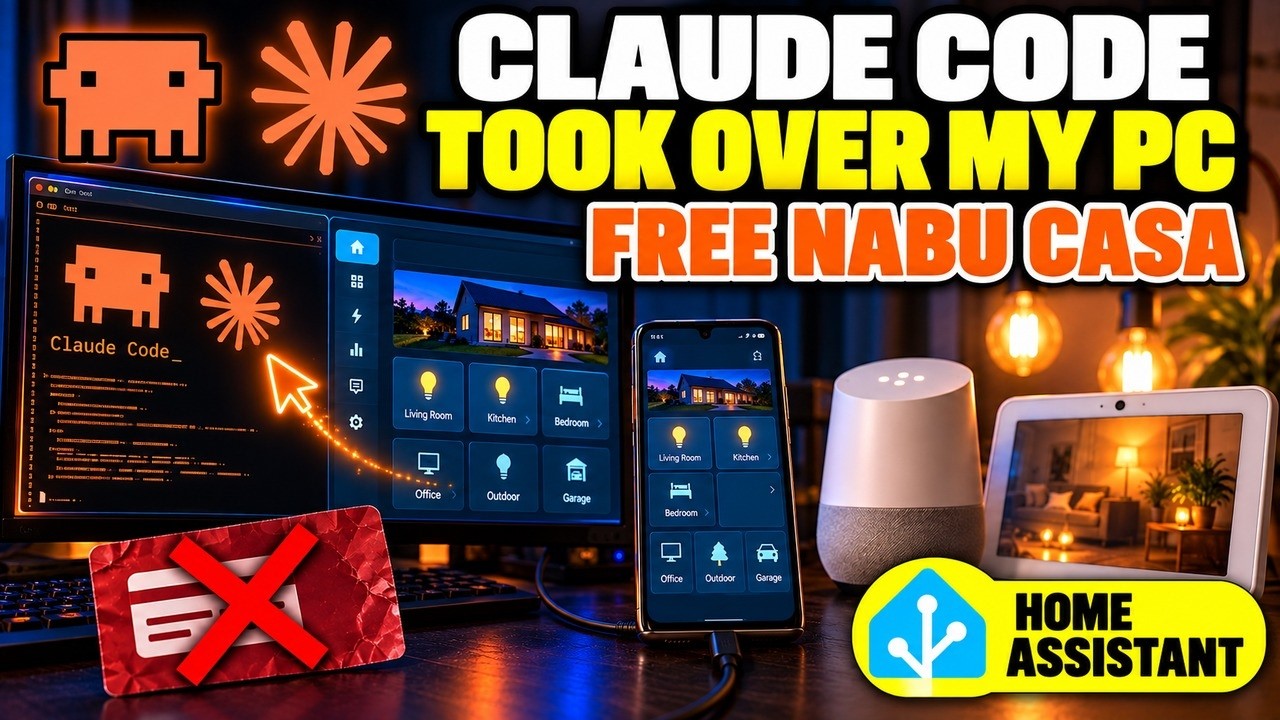
- I had Claude do the setup. It took over my computer and my phone, fixed my broken remote access in three places, and even put every light into the right room in the Google Home and Alexa apps over a USB cable.
- It costs nothing a month. The trade-off: my voice still goes to Google's and Amazon's cloud, like with any smart speaker. But now my voice commands actually turn on my lights, and my phone can control the house from anywhere.
What Nabu Casa does, and what it costs
Home Assistant Cloud, sold by Nabu Casa, is an optional paid service. At the time of writing (18 October 2026) the US price is $6.50 a month or $65 a year, and in Canada it is 8.70 CAD a month before tax; check the Nabu Casa pricing page for your country. It does three main things:
- Remote access: open Home Assistant from anywhere, without setting up your own VPN.
- Google and Alexa control: share the devices you choose with Google Assistant and Alexa, so a voice command reaches Home Assistant.
- Cloud voice for Assist: speech-to-text and text-to-speech engines that run in the cloud. (It also includes things like a cloud copy of your latest backup and webhooks.)
I tried the free month and it worked really well, but I did not want one more subscription. This guide replaces the first two for free: Google and Alexa with Matter Hub and remote access with Tailscale. I did not replace the cloud voice part.
What stopped working
I would say "Okay Google, turn on the kitchen lights" and nothing happened. Google could not do it. So I tried my Amazon speaker, and it told me it was not sure what went wrong.
The lights themselves were fine. Home Assistant could turn them on and off all day. The speakers just could not reach them any more.
Why I wanted this: Nabu Casa, then Home Assistant's own speakers
Home Assistant runs my smart home, and the easy way to connect it to Google and Amazon is a paid service called Nabu Casa. I tried their free month and it worked really well. But it is another subscription, and I did not want to pay for one more.
When the free month ended, my voice control ended with it.
So I bought Home Assistant's own voice speakers. They can control any light that works in Home Assistant, and I could use my own AI and my own voice on them. In practice they gave me nothing but problems. They were slower than Google and Amazon, the answers were not as good, and the microphones could not keep up.

So I gave up on them and went looking for a free way to get Google and Amazon back on all of my lights. That led me to Matter Hub.
Which lights Google and Alexa can control on their own
This was the part that finally made sense of the whole mess. Some of my lights kept working after Nabu Casa went away, and some did not:
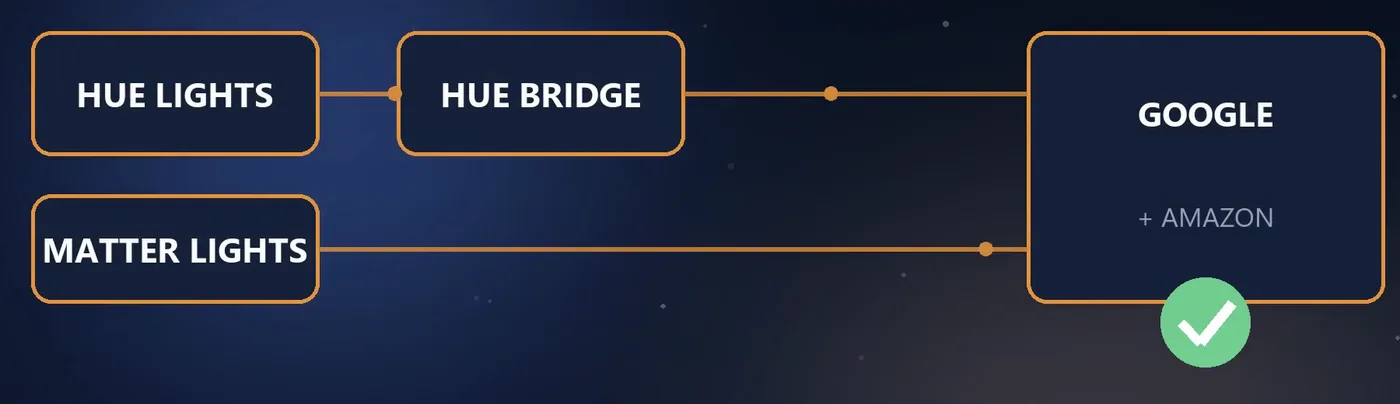
- Hue lights kept working. They connect through the Hue bridge, and the bridge has its own connection to Google and Amazon.
- Matter lights kept working. They connect directly to Google and Amazon, because that is what Matter is for.
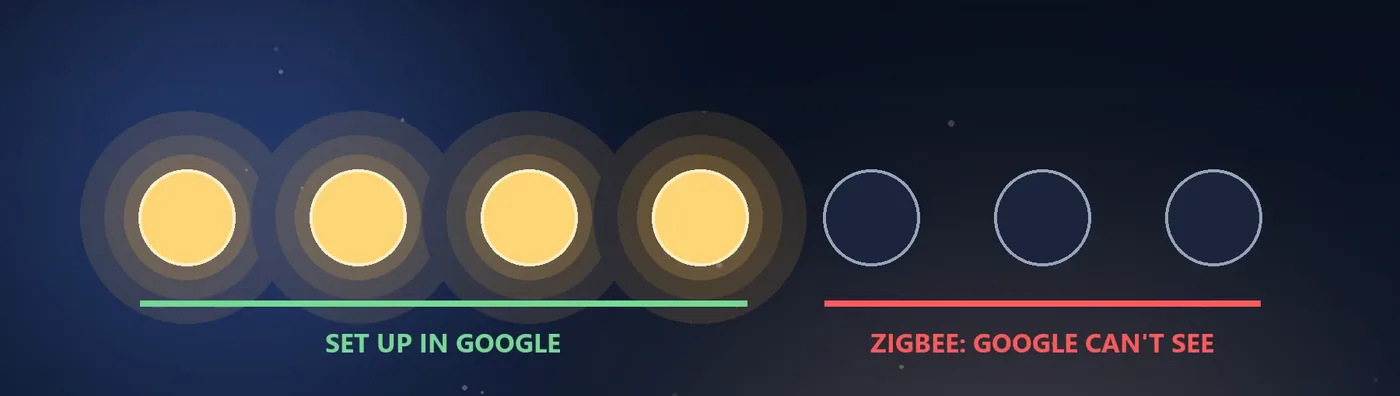
- Zigbee lights on a USB dongle did not. A dongle is only a radio. There is no company cloud and no Matter behind it for Google or Amazon to talk to, so only Home Assistant can see those lights. Nabu Casa used to be the bridge between the two.

That is also why "turn on the kitchen" only turned on some of my kitchen lights at first: only the lights already set up in Google came on, and the Zigbee ones stayed dark.
The free fix: Home Assistant Matter Hub
Matter Hub is a Home Assistant add-on that publishes the entities you choose as a Matter bridge. Google Home and Alexa see your Home Assistant lights as ordinary Matter lights. It works locally and needs no subscription. The original add-on was discontinued in early 2026; I used the maintained fork from RiDDiX.
What you need
- Home Assistant OS or Supervised, so you can install add-ons.
- A Google speaker or display that works as a Matter hub (a Nest speaker or display, for example), and for Alexa an Echo that supports Matter.
- IPv6 turned on in your router, with Home Assistant, the speakers and your phone on the same network.
- The Google Home and Alexa apps on a phone.
Step by step
-
Install the add-on
In Home Assistant open Settings → Apps → App store (called Add-ons in older versions), open the three-dot menu, choose Repositories and add:
https://github.com/RiDDiX/home-assistant-addonsInstall Home-Assistant-Matter-Hub (the stable one), turn on Start on boot, Watchdog and Show in sidebar, then start it. One setting fixed my "offline" warnings: in Configuration set the mDNS network interface to your main adapter (mine is
eth0; check the add-on log if yours differs) and restart the add-on. -
Make a label called Voice and tag only your lights
Go to Settings → Areas, labels & zones → Labels, create a label called
Voice, then add it to the lights you want Google and Alexa to control. This list is everything they will be able to reach, so take your time. I tagged my lights only. -
Create two bridges with one rule
In Matter Hub create a bridge with Manual setup and skip the templates: the Google template turns on a filter (
pattern:*) that exposes every entity you own. Instead add one rule under Entity Filters → Include:Type: entity_label Value: voiceMake two bridges with the same rule: one for Alexa on port 5540 (Alexa only pairs on that port) and one for Google on port 5541.
-
Pair Google Home and Alexa
Open the Google bridge and scan its QR code: Google Home app → + → Set up device → Matter-enabled device. Then the Alexa bridge: Alexa app → Devices → + → Add Device → Other → Matter. Your phone has to be on the same network as Home Assistant.
Do not skip Alexa's last screen. It asks "Where do you want to use your devices?" and the Next button stays disabled until every device is in a group. If you leave it unfinished, Alexa can see your lights but cannot control them and says it is not sure what went wrong.
-
Put every light in a room, in both apps
Without rooms, "turn on the kitchen" only reaches some of the lights. Give every light a room in Google Home and in the Alexa app. Keep big groups like "All Lights" out of any single room. Two gotchas: Google rejects device names with underscores or special characters, and Matter shortens names to 32 characters, so long names can end up looking identical.
-
Test it with your lights on screen
Open a Home Assistant dashboard that shows your lights, say "Okay Google, turn on kitchen one" and watch the tile change. Then try the same with Alexa.
How I got Claude to do it
I did not do anything except give Claude instructions. Claude controlled everything else: it took over my computer and my phone, including controlling my phone over a USB cable. The only things I did myself were scan the QR codes, plug in my phone and approve the sign-ins. It opened the Google Home app and put every light into the right room, so when I ask Google to turn on a room, every light in that room comes on. Then it did the same thing in the Alexa app. That is dozens of lights in two apps, and it would have taken me a very long time by hand.
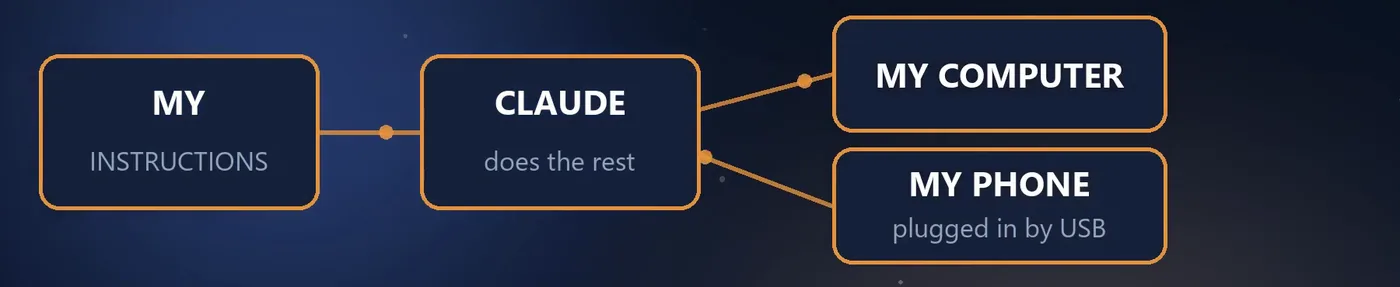
What I gave it
- A Home Assistant long-lived access token, kept in an environment variable. Make it under your profile → Security. Never paste the token into a chat, a video or a screenshot. If it leaks, delete it and make a new one.
- My Android phone, plugged in by USB with USB debugging on, with
adbandscrcpyinstalled (winget install Google.PlatformToolsandwinget install Genymobile.scrcpyon Windows).
The prompts (edit the {{placeholders}})
1. Let it talk to Home Assistant, safely
Home Assistant is at the address in the environment variable HA_URL, and a long-lived access token is in HA_TOKEN. Write a small Python helper that reads both from the environment and can call the REST API and the websocket API. Rules: never print, log or echo the token, never write it into a file or into this chat, and tell me before you change anything in Home Assistant. Start by listing my light entities, grouped by integration, as a read-only check.2. Let it control my phone
My Android phone is connected to this Windows PC by USB with USB debugging on, and adb and scrcpy are installed. Write a small helper that uses adb to (a) read the current screen with `uiautomator dump` and list the visible text with its tap position, (b) tap by text, (c) scroll, (d) type text with `input text`, and (e) go back. Mask email addresses and street addresses in anything you print. Never tap Remove, Delete or Unlink without asking me first. Test it by opening the Google Home app and reading me the screen.3. Tag my lights with a Voice label
In Home Assistant, create a label called Voice, then show me every light entity and propose which ones to tag. Only lights. Do not tag plugs, power strips, fans, thermostats or anything that must stay powered. Wait for my OK, then add the label to the lights I approved, keeping any labels they already have.4. Install and set up Matter Hub
Walk me through installing the Home Assistant Matter Hub add-on from https://github.com/RiDDiX/home-assistant-addons in Home Assistant. Then create two bridges with one include rule each, entity_label equals voice: "HA for Alexa" on port 5540 and "HA for Google" on port 5541. Do not use any template. Show me each bridge's QR code and wait while I scan it in the app.5. Rooms, on my phone
Using the phone helper, open the Google Home app and list the devices that have no room (Home settings > Devices, groups and rooms > Rooms > In your home). Move each light into the room that matches its name, using this map: {{kitchen lights}} -> Kitchen, {{dining lights}} -> Dining, {{living room lights}} -> Living Room, and so on. Leave "All Lights" and "Main floor lights" without a room. If Google refuses a name because of special characters, rename it. Then do the same in the Alexa app's setup screen. Show me the plan first, and tell me about anything you are unsure of.6. Check it worked
Watch the Home Assistant logbook for my kitchen lights and my {{power strip}} while I say "Okay Google, turn off the kitchen". Tell me which entities changed, which service made the change, and confirm the power strip did not change.The mistake: my first try shared a power strip
My first attempt shared my plugs and power strips with Google and Amazon too, not just my lights. So when I said "turn off the kitchen", it also turned off the power strip that my kitchen tablet is plugged into. That cut off the tablet's charging. It still had battery power, so it kept running, but it would have died eventually.
Only share lights. If you expose plugs, a "turn off the room" command turns them off too. Never share a plug or strip that powers something that has to stay on.
Remote access without Nabu Casa: Tailscale
The second thing Nabu Casa did for me was remote access, and that stopped working too. When I was away from home, the Home Assistant app on my phone just said "Unable to connect to Home Assistant". I asked Claude to fix it, and it found three problems:
- The Tailscale app on my phone was logged out.
- The Tailscale add-on in Home Assistant had lost its sign-in, so it showed as offline.
- The Home Assistant app was only pointed at my home network address, so it could never reach the house from mobile data.

Claude fixed all three, on my phone, on my computer and inside Home Assistant. The only thing I did myself was approve the sign-in on my phone. Then I tested it on mobile data: with Tailscale off, the app cannot connect; with Tailscale on, Home Assistant loads, and I can turn a kitchen light on and off from the phone.
What Tailscale is
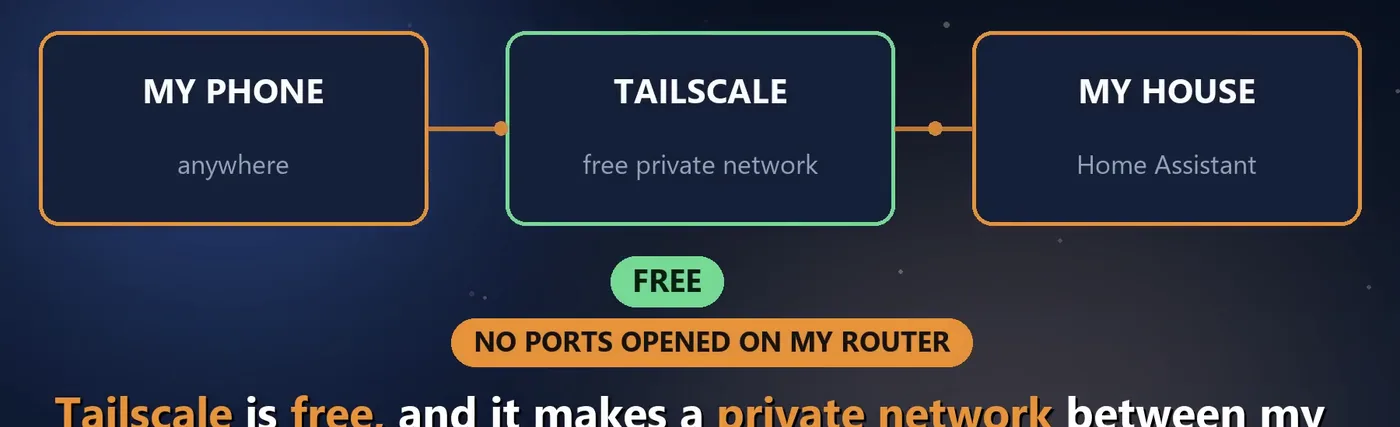
Tailscale makes a private network (a "tailnet") between your own devices, so your phone can reach Home Assistant at home as if it were on the same Wi-Fi. It has a free plan for personal use (check Tailscale's pricing page for the current limits). I did not open a single port on my router.
Set it up
-
Make a Tailscale account
Sign up at tailscale.com with a Google, Microsoft, Apple or GitHub login. Use the same account on every device.
-
Install the Tailscale add-on in Home Assistant
In Settings → Apps → App store add the Home Assistant Community Add-ons repository (
https://github.com/hassio-addons/repository), install Tailscale, turn on Start on boot and Watchdog, and start it. Open its Log tab: it prints a login link. Open the link and approve the device on your Tailscale account. -
Install Tailscale on your phone
Install the Tailscale app, sign in with the same account and switch it on. Your phone and "homeassistant" should both show as connected.
-
Point the Home Assistant app at the Tailscale address
Tailscale shows each device's address (it starts with 100.). In the Home Assistant app open Settings → Companion app → your server and set Home Assistant URL to
http://100.x.y.z:8123using the address of your "homeassistant" device. -
Test it on mobile data
Turn Wi-Fi off on the phone and open the Home Assistant app. It should load. If it says "Unable to connect", check that the Tailscale VPN is on and that both devices show connected in the Tailscale app.
Prompts for Claude (edit the {{placeholders}})
7. Set up Tailscale remote access from scratch
Set up free remote access for my Home Assistant with Tailscale. Do it in this order and show me what you are about to do before each step: (1) install the Tailscale add-on from the Home Assistant Community Add-ons repository (https://github.com/hassio-addons/repository), turn on Start on boot and Watchdog, start it, then read its log and show me the login link; (2) on my phone, using the phone helper, open the Tailscale app and get it to the sign-in screen; (3) set the Home Assistant app's server URL to the add-on's Tailscale address, http://{{100.x.y.z}}:8123; (4) test with Wi-Fi off, on mobile data. I will approve every sign-in myself, you must never type a password or print the token, and nothing gets opened on my router.8. Find out why remote access broke
My Home Assistant app says "Unable to connect" when I am not on my home Wi-Fi. Do not change anything yet. Check three things and tell me what you find: (1) is the Tailscale app on my phone signed in and connected, (2) is the Tailscale add-on in Home Assistant running and online in my tailnet (read its log), (3) which address is the Home Assistant app using. Use the token from the HA_TOKEN environment variable and my phone over USB, and never print the token or my email address.9. Fix it, with me approving the sign-ins
Fix what you found. Sign the phone's Tailscale app back in, restart the Tailscale add-on and show me its login link, and set the Home Assistant app's server URL to the add-on's Tailscale address, http://{{100.x.y.z}}:8123. I will approve every sign-in myself and you must never type a password. Then test it with Wi-Fi off, on mobile data, and tell me what you see.Keep the Tailscale add-on signed in. Mine had silently lost its sign-in and showed offline for days. If remote access ever stops working, open the Tailscale app on your phone and look for "homeassistant" in the list: if it is offline, restart the add-on and sign in again from its log.
The trade-off, and what it costs
Remote access and Google and Alexa control now cost me nothing a month, and they keep working without Nabu Casa. The trade-off is that my voice still goes to the cloud, because Google and Amazon still hear and process what I say. What stays local is the link between those speakers and my lights. And now my voice commands actually turn on my lights.
Questions people ask
Can Google Home control Zigbee lights from Home Assistant without Nabu Casa?
Yes. Matter Hub shares the lights you choose with Google Home as a Matter bridge, so Google can control lights that only exist in Home Assistant, including Zigbee lights on a USB dongle.
Does it work with Alexa and Google Home at the same time?
Yes. Make two bridges with the same filter rule. Alexa only pairs on port 5540, so give Google another port, like 5541.
Why do my Hue lights work but my Zigbee dongle lights do not?
The Hue bridge has its own link to Google and Amazon, and Matter lights connect to them directly. A Zigbee USB dongle is only a radio with nothing behind it that Google or Amazon can talk to, so only Home Assistant sees those lights.
Is Home Assistant Matter Hub free?
Yes, it is a free open-source add-on. Nabu Casa is a separate paid service and you do not need it for this.
Is it safe to let an AI set this up?
It can be, with guardrails: keep the token in an environment variable and never paste it into a chat, start read-only, make the assistant ask before it changes anything, and share only lights.
What does Nabu Casa do?
Nabu Casa sells Home Assistant Cloud: remote access to Home Assistant, Google Assistant and Alexa integration, and cloud speech engines for Assist. In the US it costs about $6.50 a month.
How do I access Home Assistant remotely without Nabu Casa?
Use Tailscale. Install the Tailscale add-on in Home Assistant and the Tailscale app on your phone, sign in to the same account, then set the Home Assistant app on your phone to the add-on's Tailscale address. It works on mobile data and needs no open ports on your router.
Is Tailscale free for Home Assistant remote access?
Tailscale has a free plan for personal use. Check Tailscale's pricing page for the current limits.
Does my voice stay local?
No. Your voice still goes to Google's or Amazon's cloud like with any smart speaker. The link from those speakers to your lights is what stays local.
Products used in this guide
These are the products shown in the video. The links are affiliate links: they cost you nothing extra and they help the channel. Everything else I use is on my gear page.
- Google Nest speaker: a Google speaker or display that works as a Matter hub.
- Amazon Echo Show 8: the Alexa side.
- Philips Hue Bridge and Hue White A19 bulbs: lights Google and Alexa already reach through the bridge.
- Zigbee 3.0 USB dongle and Sengled Zigbee smart bulbs (6 pack): the Zigbee lights that need Matter Hub.
- Kasa KP303 smart power strip and a budget Android tablet (Lenovo Tab M9): from the power-strip mistake.
- Home Assistant Voice Preview Edition: the voice speaker I gave up on.
Your turn
Do you think software subscriptions will become a thing of the past, now that AI can build any program for you on demand? Let me know in the comments on the video.
Links and the video
- Matter Hub (maintained fork): github.com/RiDDiX/home-assistant-matter-hub
- Add-on repository to paste into Home Assistant: github.com/RiDDiX/home-assistant-addons
- Matter Hub docs: riddix.github.io/home-assistant-matter-hub
- Tailscale: tailscale.com (free plan for personal use)
- Home Assistant Community Add-ons repository (Tailscale add-on): github.com/hassio-addons/repository
- Nabu Casa pricing: nabucasa.com/pricing
- Google devices that can act as a Matter hub: developers.home.google.com/matter/supported-devices
- Watch how it went: the video, "Free Nabu Casa Alternative for Home Assistant (Claude Set It Up)", on YouTube (more on the Brian's Smart Home channel)
- Take the tour: my 3D smart home tour on YouTube
- My whole setup: Home Assistant, Zigbee and voice and the gear I use
As an Amazon Associate I earn from qualifying purchases. Some links on this site are affiliate links; they cost you nothing extra. Details.