
The short version
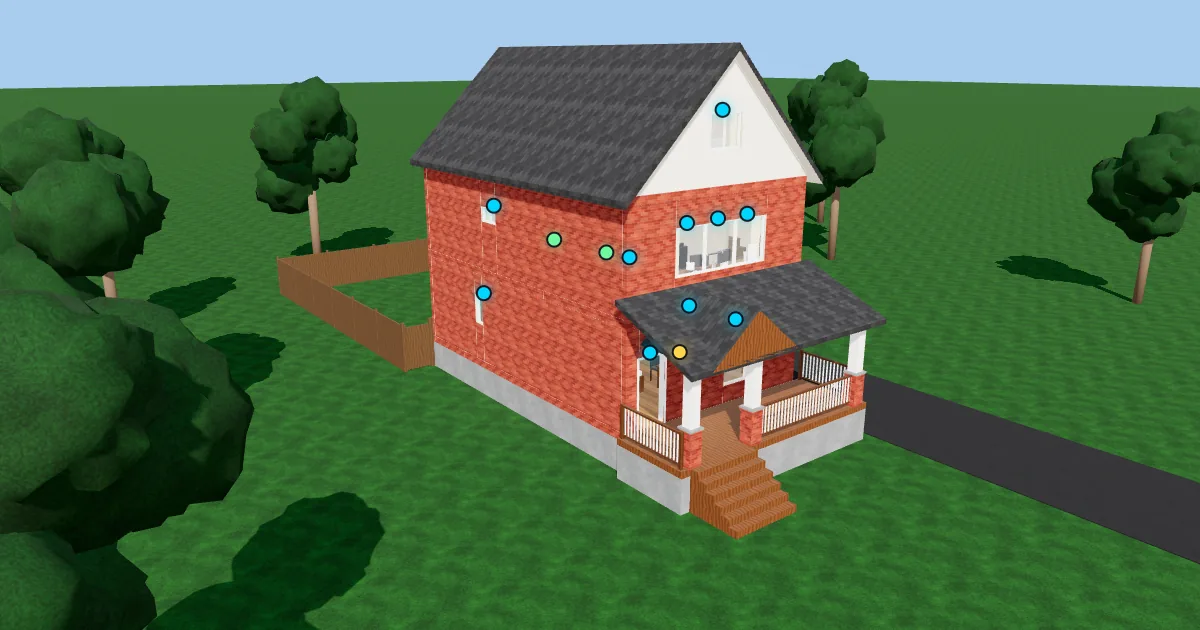
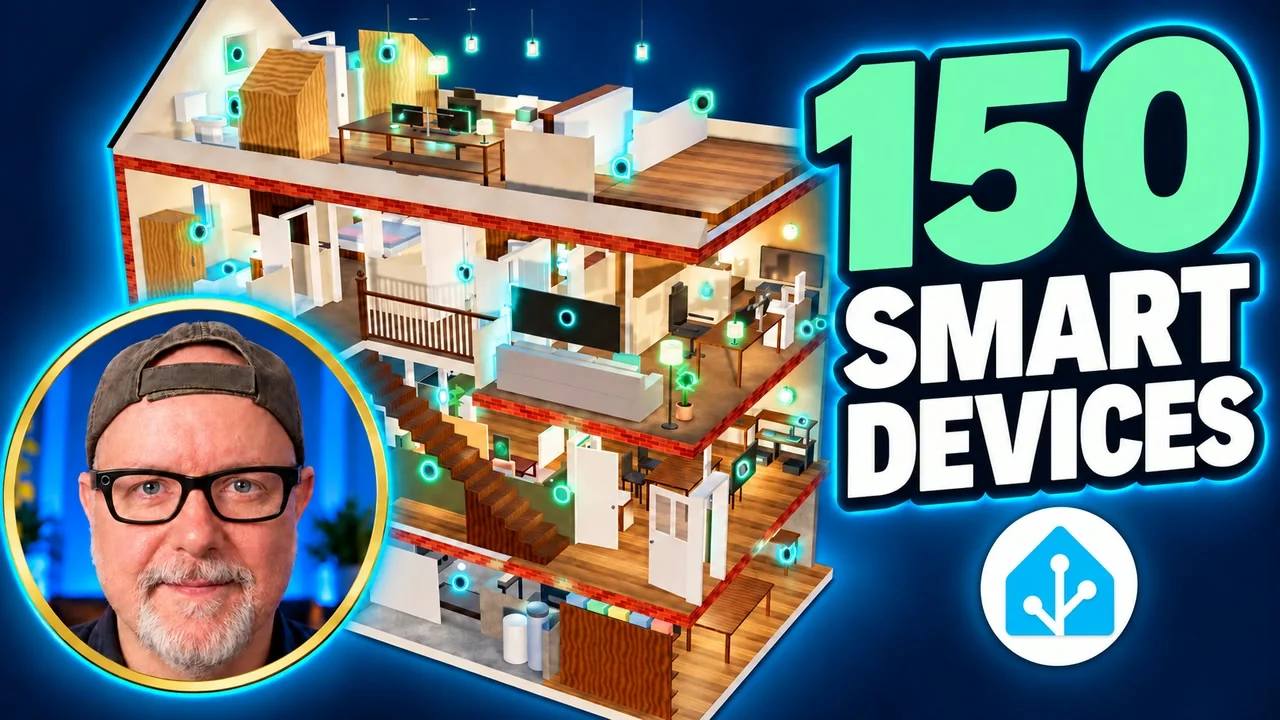
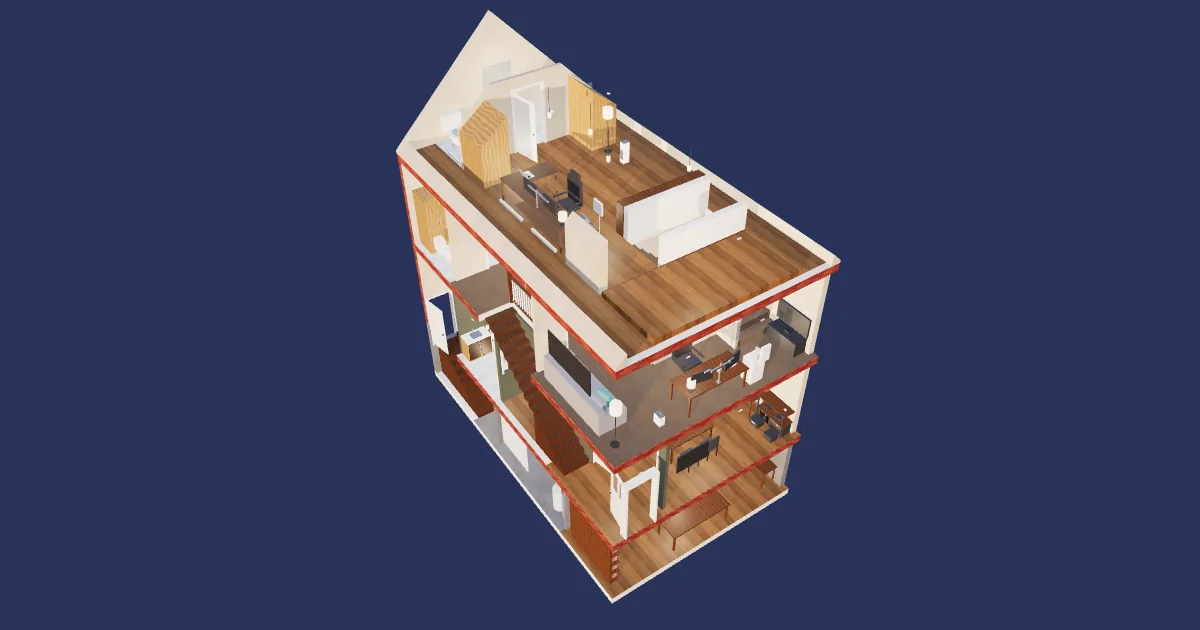
- It is a 3D model of my real house: the basement, main floor, second floor and attic, plus the porch, the driveway and the workshop at the end of the yard.
- Every smart device from the house tour is a dot you can tap, about 150 of them. Green is Zigbee, blue is Wi-Fi and yellow is Hue.
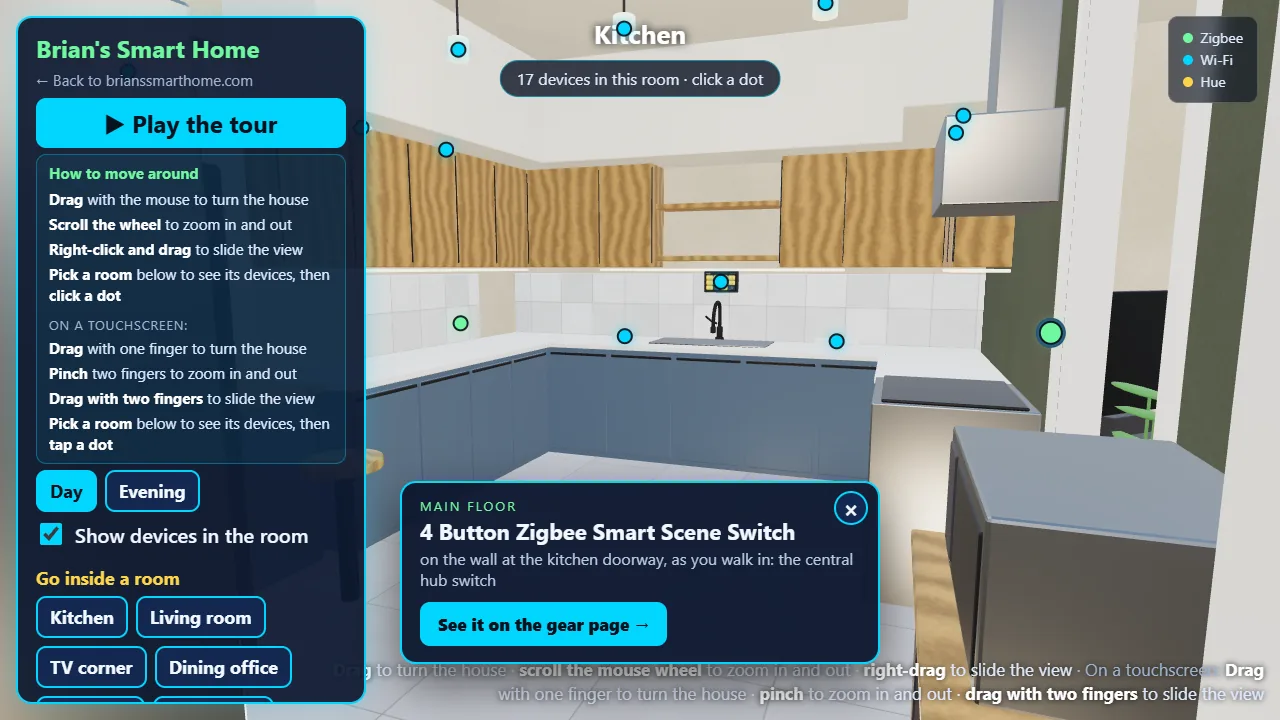
- Pick any of the rooms or close-ups, and the dots for that room appear. Tap one and a card tells you what it is and what it does, with a button to its page on my gear list.
- It is free, about 14 MB, and works on phones, tablets and computers.
What you are looking at
My house was built in 1920. It has plaster walls and ten-foot ceilings, and nothing about it was built to be smart. I made the 3D model from the floor plans of my own house, so the rooms, stairs and windows are where they are in real life. The furniture and small details are close, not perfect. The devices are placed where I really put them: the buttons by the doors, the motion sensor on the attic stairs, the plug that runs the attic fan.
How to use it, step by step
-
Open it
Open the 3D house. It goes full screen and takes a few seconds to load the first time. Use the latest Chrome, Safari or Edge.
-
Turn it and zoom in
With a mouse: drag to turn the house, scroll the wheel to zoom and right-click and drag to slide the view. On a touchscreen: drag with one finger, pinch to zoom and drag with two fingers to slide.
-
Pick a room
Choose a room under "Go inside a room" (on a phone, tap Menu, or use the strip at the bottom). The camera moves inside and only that room's dots show, so it never turns into a wall of dots. There are close-ups too: the front hall, the main stairs, the attic stairs, the kitchen tablet, the cat feeder and the EV charger in the driveway.
-
Tap a dot
A card opens with the product, where it is and what it does. The button on the card takes you straight to that product on my gear page.
-
Change the look
Switch between Day and Evening. Untick the roof, a floor or a wall to see inside. Or use the Views buttons: whole house, cutaway, main floor, second floor, attic and basement.
-
Play the tour
On a computer, Play the tour walks you through the house room by room with captions. On a phone that button is replaced with a link to the tour video.
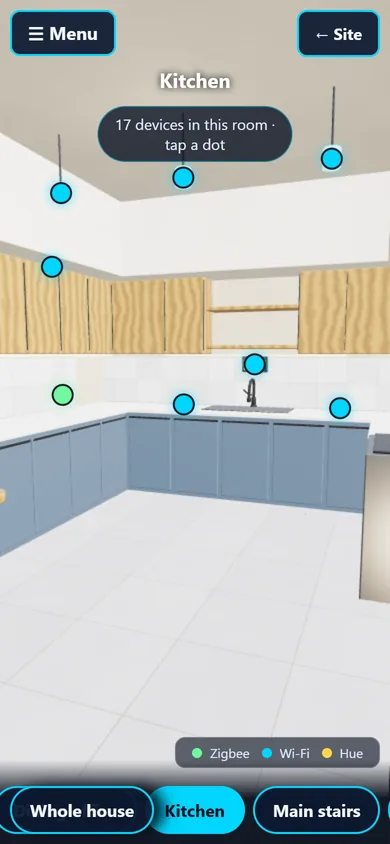
On a phone
A lot of people open the site on their phone, so the 3D house is built for it. The dots are big enough to tap, the Menu and Site buttons stay on screen, and you cannot zoom the page off the screen by accident. If the phone struggles, it lowers the picture quality by itself.
The first time you open it you get a short tip card. After that it stays out of the way.
What the colours mean, and why they matter
The colour of a dot is how the device talks to the house.
- Green: Zigbee. Many of my buttons, sensors and plugs are Zigbee. A Zigbee device that is plugged into the wall repeats the signal for its neighbours, so the network gets stronger as you add plugs and bulbs. That is how one old house with thick plaster walls stays connected.
- Blue: Wi-Fi. Speakers, spot lights and the tablet.
- Yellow: Hue. Philips Hue lights, which talk to a Hue bridge.
All of it comes together in Home Assistant, which runs on a computer in the dining room office. Open that room and you can see it, with the battery backups and the network gear.
Six places to open first
- Dining office. The brain of the house: Home Assistant, its Zigbee stick, the battery backups and the network gear.
- Kitchen. Seven spot lights, a four-button switch for the main floor, and my Home Assistant dashboard on an old Android tablet.
- Laundry room and the cat feeder. A dehumidifier, sensors, and a cat feeder that is also a Zigbee router.
- Craft room. The radon sensor, and what the ERV (the energy recovery ventilator) in the basement did to the radon.
- Attic stairs. One button that does three jobs.
- EV charger. A view from the driveway, with the charger and the car plugged into it.
From a dot to the gear page
Every card has a button that jumps to that product on my gear page. Most of the product links go to Amazon and are affiliate links: they cost you nothing extra and they help the channel. Here are the details. If you want to see how the whole system fits together, start with my setup.
What is not in it
- Security cameras. The property is covered by cameras running Frigate, but I do not show where they are. They are not in the model.
- Full product reviews. Some devices are not hooked up to Home Assistant yet, and the full reviews come next. For now each card is a short note and a link to the gear page.
- Perfect furniture. The layout follows my floor plans, but the furniture is close, not exact.
Questions people ask
Is the 3D house free to use?
Yes. There is nothing to install and no sign-up. Open the page and it loads the house in your browser.
Does the 3D house work on a phone?
Yes. On a phone, drag with one finger to turn the house, pinch to zoom, and pick a room from the strip at the bottom of the screen. If your phone is slow, the page lowers the picture quality by itself so it keeps moving.
Why does it say about 14 MB?
That is the 3D model of the house, plus the car in the driveway. It downloads once when you open the viewer, so use Wi-Fi if your mobile data is limited.
The 3D house will not load. What do I do?
It needs WebGL, which every current version of Chrome, Safari and Edge has. If your browser has it turned off or is very old, the page says so and offers the tour video instead.
Can I see where your security cameras are?
No. My property is covered by security cameras running Frigate, but I do not show where they are, so they are not in the model.
Is every device in the house in the 3D model?
It has a dot for about 150 smart devices, the ones shown in the house tour. Some devices are not hooked up to Home Assistant yet, and the full product reviews come next.
What is the difference between the video tour and the 3D house?
The video is the narrated tour, room by room. The 3D house is the same place, but you move around yourself and tap whatever you are curious about.
Links and the video
- Open it: the 3D house
- Watch the narrated tour: "I Put 150 Smart Devices in a 1920s House (Full Tour)" on YouTube (more on the Brian's Smart Home channel)
- All the videos in one place: the Videos page
- Every product I use: the gear page and my setup
- Next guide: a free Nabu Casa alternative for Home Assistant
As an Amazon Associate I earn from qualifying purchases. Some links on this site are affiliate links; they cost you nothing extra. Details.